
Media and Formats (CC.3)

3-5-2.CC.3. use a variety of media and formats to create and edit products (e.g., presentations, newsletters, brochures, web pages) to communicate information and ideas to various audiences.
Media can mean any kind of computer file. Some media use text for writing words and sentences. The most interesting media use sounds and pictures. The pictures can be still or moving. Sounds can be voices, nature, music or pretty much anything you can hear. When you combine more than one kind of media, it is called "multimedia".
Media can mean any kind of computer file. Some media use text for writing words and sentences. The most interesting media use sounds and pictures. The pictures can be still or moving. Sounds can be voices, nature, music or pretty much anything you can hear. When you combine more than one kind of media, it is called "multimedia".
I Can

I can use media to create a product.
I can create to communicate information.
I can show my ideas to other students, Mr. Thelen and my parents.
I can create to communicate information.
I can show my ideas to other students, Mr. Thelen and my parents.

Learning Goals and Scales

Use Story Starters to get an idea for writing.
|

Instead of using the Story Starter tools to write and draw, let's use Google Docs and either Google Draw or Images for our picture that matches our story! Make sure you use the touch typing skills you were taught as well as all the correct punctuation and paragraph indents your homeroom teacher taught you. Make your best effort on everything, including spelling.
Note: 3rd & 4th grade need 2 weeks to do this. |

5th graders can pair up, collaborate and email their projects!
|

What's your Spark?
Sparks are passions and skills that we feel deeply and help us grow. Sparks come from inside a person, rather than being forced from the outside. A Spark is more than just a passing interest or talent. Sparks bring us energy and joy. They can grow into a life purpose, and allow a person to make a contribution to the world. Examples of Sparks are what make you light up inside!
People can have more than one Spark at the same time!
Discover Your Spark! © 2011 Thrive Foundation for Youth.
1. What makes you want to jump out of bed in the morning?
2. What makes you dread getting out of bed? (Sometimes talking about the things that aren’t your spark can give you clues about finding it.)
3. Describe something that you’ve done that you are proud of.
4. Which day is your favorite day of the week? What do you look forward to doing on that day?
5. Think of someone who actively pursues his or her spark. Describe what you see.
6. If you could spend a whole day doing anything you wanted, and money and resources were unlimited, what would you do? Why?
7. To explore your potential spark, is there something you’d like to try or learn more about?
This slide show is your opportunity to express your spark! You will also have the choice to show your "Spark Slide Show" to your family at Parent / Teacher night in November!
How great would it be to know each other by our spark? I will be thinking about what my spark is too!
Spark Ideas: Animals, computers, nature, God, protecting wildlife, hunting, fishing, camping, sports, hobbies, telling jokes, debate, acting, directing, taking pictures, videos, animation, living with joy, caring, reading, standing up for others, family, journalism, radio & TV production, helping homeless, play a guitar, drums, horn or other musical instruments, listening to music, leading a choir, writing songs, playing in a band, painting, drawing, writing stories, poems, plays, dance, karate, cooking, fashion, clothes, shoes, building things, student government, spending money, saving money, teaching, coaching, learning, friends, being supportive, encouraging others, serving, helping, volunteering.
1. Write 1 good paragraph for each slide. Imagine the voice of the teacher who taught you how to write a good paragraph. What would she be telling you? You should end up with 1 cover and 5 spark slides for 6 total slides to start.
2. Insert 1 picture for each slide (for now) to match your paragraph.
3. Read your paragraph out loud; you will find more errors to correct this way.
4. Check spelling; red line, right click, correct.
5. Capitalize first letter of each sentence, titles and anywhere else capitalization is needed.
6. Tab indent beginning of paragraph.
7. Look for other correct punctuation such as 1 space after a period of a sentence, before the next sentence.
8. Find a partner to double check your work. Partner points out errors you missed; YOU make the correction.
9. Add a 2nd picture to each slide and 2 to 4 on your cover.
10. Add more spark slides.
11. Are we ever really "done"? No, whether it is getting better at sports, your slide shows or anything else, life is about making your best effort, continuously learning, improving, and having fun while you do it.
Sparks are passions and skills that we feel deeply and help us grow. Sparks come from inside a person, rather than being forced from the outside. A Spark is more than just a passing interest or talent. Sparks bring us energy and joy. They can grow into a life purpose, and allow a person to make a contribution to the world. Examples of Sparks are what make you light up inside!
People can have more than one Spark at the same time!
Discover Your Spark! © 2011 Thrive Foundation for Youth.
1. What makes you want to jump out of bed in the morning?
2. What makes you dread getting out of bed? (Sometimes talking about the things that aren’t your spark can give you clues about finding it.)
3. Describe something that you’ve done that you are proud of.
4. Which day is your favorite day of the week? What do you look forward to doing on that day?
5. Think of someone who actively pursues his or her spark. Describe what you see.
6. If you could spend a whole day doing anything you wanted, and money and resources were unlimited, what would you do? Why?
7. To explore your potential spark, is there something you’d like to try or learn more about?
This slide show is your opportunity to express your spark! You will also have the choice to show your "Spark Slide Show" to your family at Parent / Teacher night in November!
How great would it be to know each other by our spark? I will be thinking about what my spark is too!
Spark Ideas: Animals, computers, nature, God, protecting wildlife, hunting, fishing, camping, sports, hobbies, telling jokes, debate, acting, directing, taking pictures, videos, animation, living with joy, caring, reading, standing up for others, family, journalism, radio & TV production, helping homeless, play a guitar, drums, horn or other musical instruments, listening to music, leading a choir, writing songs, playing in a band, painting, drawing, writing stories, poems, plays, dance, karate, cooking, fashion, clothes, shoes, building things, student government, spending money, saving money, teaching, coaching, learning, friends, being supportive, encouraging others, serving, helping, volunteering.
1. Write 1 good paragraph for each slide. Imagine the voice of the teacher who taught you how to write a good paragraph. What would she be telling you? You should end up with 1 cover and 5 spark slides for 6 total slides to start.
2. Insert 1 picture for each slide (for now) to match your paragraph.
3. Read your paragraph out loud; you will find more errors to correct this way.
4. Check spelling; red line, right click, correct.
5. Capitalize first letter of each sentence, titles and anywhere else capitalization is needed.
6. Tab indent beginning of paragraph.
7. Look for other correct punctuation such as 1 space after a period of a sentence, before the next sentence.
8. Find a partner to double check your work. Partner points out errors you missed; YOU make the correction.
9. Add a 2nd picture to each slide and 2 to 4 on your cover.
10. Add more spark slides.
11. Are we ever really "done"? No, whether it is getting better at sports, your slide shows or anything else, life is about making your best effort, continuously learning, improving, and having fun while you do it.

Sentence Formation. Every sentence must have a subject and a verb. Even though it has only two words, this is a complete sentence: “She slept.” “She” is the subject and “slept” is the verb, and those two words are all a sentence needs. On the other hand, “You know, the one with the strawberry blond hair.” is not a sentence. It has many words, but it is missing a verb. A fragment is a collection of words that is missing either a subject or a verb.

The purpose of Google drive is to give students access to any projects they may need to work on from home. The accounts were created by the Howell Public Schools (HPS) district central office. Security is provided by unique student usernames and passwords along with random keyword retype security.
Google drive is a storage area for school projects similar to the h drive of a network or the C drive on a PC. The difference is moving access from the HPS network to the "cloud" at Google.
We will create projects using the Google tools. Students can show their projects to whoever their parents want.
Although the Google drive login page talks about email, Google drive itself is NOT an email account. All students, K-12, have a howellschools.com Google Apps account with grades 5-12 having email enabled accounts.
For students in grades K-4 the "Google Drive" link to our website will allow these students to login and will take them directly into google drive (docs). Should they try to switch to mail they will receive an access denied message. Students at this age do not have access to send emails from their Google drive account. HPS has locked K-4 students out of the email option.
Google drive is a storage area for school projects similar to the h drive of a network or the C drive on a PC. The difference is moving access from the HPS network to the "cloud" at Google.
We will create projects using the Google tools. Students can show their projects to whoever their parents want.
Although the Google drive login page talks about email, Google drive itself is NOT an email account. All students, K-12, have a howellschools.com Google Apps account with grades 5-12 having email enabled accounts.
For students in grades K-4 the "Google Drive" link to our website will allow these students to login and will take them directly into google drive (docs). Should they try to switch to mail they will receive an access denied message. Students at this age do not have access to send emails from their Google drive account. HPS has locked K-4 students out of the email option.

Google Drawing. Start intro video 42 seconds in.....Done = 5:25

Gratitude Journal.
Step 1 Choose a person that you really love, appreciate and/or are grateful for.
Step 2 Find picture that reminds you of the person or you with the person and insert it into Google Presentation. This will be the start of your gratitude journal page.
Step 3 Type on your gratitude journal page. Type all of the things that you love, appreciate and / or are grateful for about that person. Write down how they make you feel and what they mean to you. Keep the gratitude journal page in a place where you will see it this week and keep adding to the list. Make sure to look at the page often and really feel grateful for the person! (thoughts)
Step 4 Give it (action)At the end of the week, or whenever you feel you’ve added everything there is to add, give or send the page to the person! You can mail it, or take a picture of it and email or text it to them (great for teens and tweens because they love their technology and it’s easy!). Get creative and send it / give it in any way that’s fun, easy and makes sense for you and your children!
Be sure to keep a copy for yourself to look at often and remember to feel grateful for that person!
That’s it, super simple right?!
But remember, knowing it and doing it are two different things. If you want the benefit of this gratitude journal page, and your want your children to get the benefit of it, you have to actually do it!
I hope this tip has served you and now it’s your turn. In the comments below let us know what you think of this tip and the idea that you have to shape thoughts, words and actions if you want your gratitude journal to actually work and start creating the habit of gratitude; to not just be a place to write a list, but to be a powerful tool instead.
Step 1 Choose a person that you really love, appreciate and/or are grateful for.
Step 2 Find picture that reminds you of the person or you with the person and insert it into Google Presentation. This will be the start of your gratitude journal page.
Step 3 Type on your gratitude journal page. Type all of the things that you love, appreciate and / or are grateful for about that person. Write down how they make you feel and what they mean to you. Keep the gratitude journal page in a place where you will see it this week and keep adding to the list. Make sure to look at the page often and really feel grateful for the person! (thoughts)
Step 4 Give it (action)At the end of the week, or whenever you feel you’ve added everything there is to add, give or send the page to the person! You can mail it, or take a picture of it and email or text it to them (great for teens and tweens because they love their technology and it’s easy!). Get creative and send it / give it in any way that’s fun, easy and makes sense for you and your children!
Be sure to keep a copy for yourself to look at often and remember to feel grateful for that person!
That’s it, super simple right?!
But remember, knowing it and doing it are two different things. If you want the benefit of this gratitude journal page, and your want your children to get the benefit of it, you have to actually do it!
I hope this tip has served you and now it’s your turn. In the comments below let us know what you think of this tip and the idea that you have to shape thoughts, words and actions if you want your gratitude journal to actually work and start creating the habit of gratitude; to not just be a place to write a list, but to be a powerful tool instead.

Google Documents are often used to communicate information in a text format, using words and sentences. In the near future, some teachers will ask you to covert your handwritten work to a typed text format. Let's practice some of the tools that will help you do this.
Font Size. Change the font size to 14 and type the title of something you want to write about.
Font Size. Change the font size to 14 and type the title of something you want to write about.
Enter, Tab, Shift & Title Document
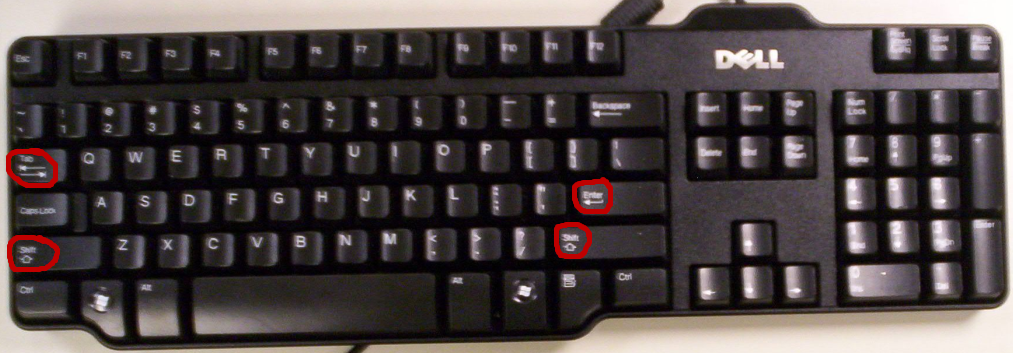
Let's get into discussion groups to brainstorm things to write about. Talk about people you know or things you like and why you like them.
The enter key will drop your cursor down a line. Use the tab key to indent a new paragraph. Do not use the space bar to indent.
Type a paragraph 3 to 5 sentences long about someone or something you like with supporting details why. Let the end of your lines automatically wrap around to the next line. Do not drop a line down with the enter key until you need a new paragraph. Use your shift key to capitalize when necessary. Remember to put a space AFTER the period, not before. The same is true for question marks (?), exclamation points (!), commas (,) and any other kind of punctuation mark.
Start a second paragraph and type 3-5 or more sentences.
The enter key will drop your cursor down a line. Use the tab key to indent a new paragraph. Do not use the space bar to indent.
Type a paragraph 3 to 5 sentences long about someone or something you like with supporting details why. Let the end of your lines automatically wrap around to the next line. Do not drop a line down with the enter key until you need a new paragraph. Use your shift key to capitalize when necessary. Remember to put a space AFTER the period, not before. The same is true for question marks (?), exclamation points (!), commas (,) and any other kind of punctuation mark.
Start a second paragraph and type 3-5 or more sentences.

What I like about Thanksgiving. Let's get into discussion groups to brainstorm things to write about. Talk about what you like about Thanksgiving and why. Type a paragraph 3 to 5 sentences long about what you like about Thanksgiving with supporting details why.
Start a second paragraph and type 3-5 or more sentences. Make sure you use the touch typing skills you were taught as well as all the correct punctuation and paragraph indents your homeroom teacher taught you. Make your best effort on everything, including spelling.
Start a second paragraph and type 3-5 or more sentences. Make sure you use the touch typing skills you were taught as well as all the correct punctuation and paragraph indents your homeroom teacher taught you. Make your best effort on everything, including spelling.

What I like about the Christmas Season. Let's get into discussion groups to brainstorm things to write about. Talk about what you like about the Christmas season and why. This can include the original reason for the season, the birth of someone named Jesus. Did you know:
1. Students have a constitutional right to express their faith and religious ideas in a public school. The First Amendment protects the private religious speech of students both on and off the school campus. Student expression may not be censored by school officials simply because it is religious.
2. Students have the right to give out religious materials such as Christmas cards containing bible verses in public schools.
3. Students have the right to express religious viewpoints in school assignments, reading materials and clothing. School officials may not stop students from conveying religious sentiments through their school assignments or the selection of reading materials based on the religious viewpoint as long as it falls within the educational scope of the assignment. For example, if an assignment has the student writing an essay on the most influential person in their lives, that student is free to write an essay on the influence of Jesus Christ.
4. School districts may not stop teachers and students from saying “Merry Christmas.” The Supreme Court has stated that teachers and students do not “shed their constitutional rights to freedom of speech or expression at the schoolhouse gate.”
For more, see Constitutional Rights of Students, Teachers,and Public Schools to Seasonal Religious Expression and Frequently Asked Questions about Religious Freedom at Public Schools and Constitutional Rights of Students, Teachers, and Public Schools.
Type a paragraph 3 to 5 sentences long about what you like about the Christmas season with supporting details why.
Start a second paragraph and type 3-5 or more sentences.
1. Students have a constitutional right to express their faith and religious ideas in a public school. The First Amendment protects the private religious speech of students both on and off the school campus. Student expression may not be censored by school officials simply because it is religious.
2. Students have the right to give out religious materials such as Christmas cards containing bible verses in public schools.
3. Students have the right to express religious viewpoints in school assignments, reading materials and clothing. School officials may not stop students from conveying religious sentiments through their school assignments or the selection of reading materials based on the religious viewpoint as long as it falls within the educational scope of the assignment. For example, if an assignment has the student writing an essay on the most influential person in their lives, that student is free to write an essay on the influence of Jesus Christ.
4. School districts may not stop teachers and students from saying “Merry Christmas.” The Supreme Court has stated that teachers and students do not “shed their constitutional rights to freedom of speech or expression at the schoolhouse gate.”
For more, see Constitutional Rights of Students, Teachers,and Public Schools to Seasonal Religious Expression and Frequently Asked Questions about Religious Freedom at Public Schools and Constitutional Rights of Students, Teachers, and Public Schools.
Type a paragraph 3 to 5 sentences long about what you like about the Christmas season with supporting details why.
Start a second paragraph and type 3-5 or more sentences.

What I like about snow days! Let's get into discussion groups to brainstorm things to write about. Talk about what you like about snow days and why. Type a paragraph 3 to 5 sentences long about what you like about snow days with supporting details why. Start a second paragraph and type 3-5 or more sentences. Make sure you use the touch typing skills you were taught as well as all the correct punctuation and paragraph indents your homeroom teacher taught you. Make your best effort on everything, including spelling.

What I like about spring! Let's get into discussion groups to brainstorm things to write about. Talk about what you like about spring, spring break or Easter and why. This can include the connection between Easter and Jesus if you choose.
Students may study the religious origins of Easter and read the biblical accounts of Christ's resurrection in public schools.
Type a paragraph 3 to 5 sentences long about what you like about spring with supporting details why. Start a second paragraph and type 3-5 or more sentences. Make sure you use the touch typing skills you were taught as well as all the correct punctuation and paragraph indents your homeroom teacher taught you. Make your best effort on everything, including spelling.
On the 2nd week, once you have at least 1 thick, indented paragraph, centered title, red line spelling corrections and the name of your document in the upper left corner, you may insert a drawing or search for a picture that matches what you wrote. Make your best effort on everything, including spelling. You may also experiment with changing to a different, readable font if you like, including colors.
Students may study the religious origins of Easter and read the biblical accounts of Christ's resurrection in public schools.
Type a paragraph 3 to 5 sentences long about what you like about spring with supporting details why. Start a second paragraph and type 3-5 or more sentences. Make sure you use the touch typing skills you were taught as well as all the correct punctuation and paragraph indents your homeroom teacher taught you. Make your best effort on everything, including spelling.
On the 2nd week, once you have at least 1 thick, indented paragraph, centered title, red line spelling corrections and the name of your document in the upper left corner, you may insert a drawing or search for a picture that matches what you wrote. Make your best effort on everything, including spelling. You may also experiment with changing to a different, readable font if you like, including colors.
Google Docs 2

spell check a word, spell check document; Word, left,right,center,bold,underline text; fonts (readable, avoid all cap & bold fonts; size (default=11, 12 or 14 good for body, 18 for Title), color (does your teacher want only black? maybe only key words in color?)
Google Docs 3

bullets, numbering; Word synonyms, thesaurus; spell check a word, spell check document; margins(page layout tab); help;
Google Docs 4

Word help, borders lines(page layout, borders tab) and art(page layout, page border tab); print;

Google Spreadsheets.
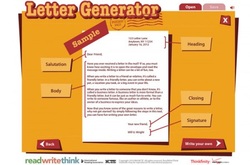
Letter Generator
Web Pages

Let's build our own web sites! Each computer has it's own login for a web site. You will be sharing your web site with students in other classes who sit at the same computer. Each of you will have your own web page on the web site that you share. Once you are logged in:
1. Name your website Voyager Elementary Computer + Your Computer Number
2. Click on the Pages tab and create your web page.
A. Your page name will begin with the year you will graduate from 5th grade plus . . .
B. Your first name and the first letter of your last name (do not use your full last name)
3. Let's add a Title box on your web page with your name on it (no last name please!) This will let you know for sure that you are actually editing your own page and not someone else's.
4. Put 4 columns on your page
5. Put 'Title Text' on the top of each column
6. Put a subject heading in each column: Math, Reading / Writing, Science, Social Studies
7. Highlight the heading, change the color, bold, underline and center each heading.
8. Choose one of the most popular design themes for your website.
9. Click close then logoff the weebly website.
1. Name your website Voyager Elementary Computer + Your Computer Number
2. Click on the Pages tab and create your web page.
A. Your page name will begin with the year you will graduate from 5th grade plus . . .
B. Your first name and the first letter of your last name (do not use your full last name)
3. Let's add a Title box on your web page with your name on it (no last name please!) This will let you know for sure that you are actually editing your own page and not someone else's.
4. Put 4 columns on your page
5. Put 'Title Text' on the top of each column
6. Put a subject heading in each column: Math, Reading / Writing, Science, Social Studies
7. Highlight the heading, change the color, bold, underline and center each heading.
8. Choose one of the most popular design themes for your website.
9. Click close then logoff the weebly website.
Website Search

Learn how to search for fun websites that match the 4 core educational catagories in your column headings and create a link to that website from your very own webpage!
This link to common sense media reviews for websites will get us started. Narrow your search on the Common Sense Media website for 9 and 10 year olds. Look for the green ones. Green = Good, Yellow = Caution!
1. First, let's do a search for websites appropriate for 9 and 10 year olds.
A. Click on the common sense icon above.
B. Click on websites under Reviews & Advice
C. Choose ages 9 and 10
D. Sort by overall rating
F. Browse through the list for sites that might interest you.
1. Ask yourself which of the 4 core educational catagories this site might fit into
2. 4 core educational catagories=math, reading/writing, science, social studies
2. Let's review the 'Animal Jam' website together.
Keep the following in mind when deciding if a website review is good or bad:
A. Educational Value: The more A+ that are dark, the higher the value! 3 or more=good!
B. Positive Message: What do the notes say?
C. Lips and Language: Should be 'Not Applicable'
D. Consumerism: What do the notes say? 2 or Less $ = good
E. Drinking, Drugs and Smoking: Should be 'Not Applicable'
F. Privacy and Safety: More locks = higher safety!
G. Scroll down, click on 'Is it any good?', and read about it. How many stars is it rated?
H. ONLY IF, the website review is good: scroll up to the link and check out the website.
3. With a partner:
A. Find a website that looks interesting and has at least 3 or more A+
B. Review the website in the same way we did together.
C. If the website review is bad, look for another website.
D. If the website review is good, scroll up to the link and check out the website.
4. Now review a different website on your own!
This link to common sense media reviews for websites will get us started. Narrow your search on the Common Sense Media website for 9 and 10 year olds. Look for the green ones. Green = Good, Yellow = Caution!
1. First, let's do a search for websites appropriate for 9 and 10 year olds.
A. Click on the common sense icon above.
B. Click on websites under Reviews & Advice
C. Choose ages 9 and 10
D. Sort by overall rating
F. Browse through the list for sites that might interest you.
1. Ask yourself which of the 4 core educational catagories this site might fit into
2. 4 core educational catagories=math, reading/writing, science, social studies
2. Let's review the 'Animal Jam' website together.
Keep the following in mind when deciding if a website review is good or bad:
A. Educational Value: The more A+ that are dark, the higher the value! 3 or more=good!
B. Positive Message: What do the notes say?
C. Lips and Language: Should be 'Not Applicable'
D. Consumerism: What do the notes say? 2 or Less $ = good
E. Drinking, Drugs and Smoking: Should be 'Not Applicable'
F. Privacy and Safety: More locks = higher safety!
G. Scroll down, click on 'Is it any good?', and read about it. How many stars is it rated?
H. ONLY IF, the website review is good: scroll up to the link and check out the website.
3. With a partner:
A. Find a website that looks interesting and has at least 3 or more A+
B. Review the website in the same way we did together.
C. If the website review is bad, look for another website.
D. If the website review is good, scroll up to the link and check out the website.
4. Now review a different website on your own!
Sample Good Website Review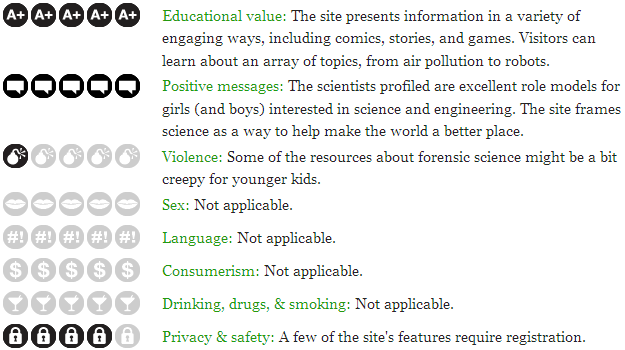
Notice all the A+, Postive Messages and Locks. Notice also no lips, bad language, $ or drinks. Click on the picture to make it bigger!
REMEMBER: You can go to the website link the review talks about ONLY IF the review is good. This is common sense. Common Sense Mission
Parents, check out the mission!
|
Sample Bad Website Review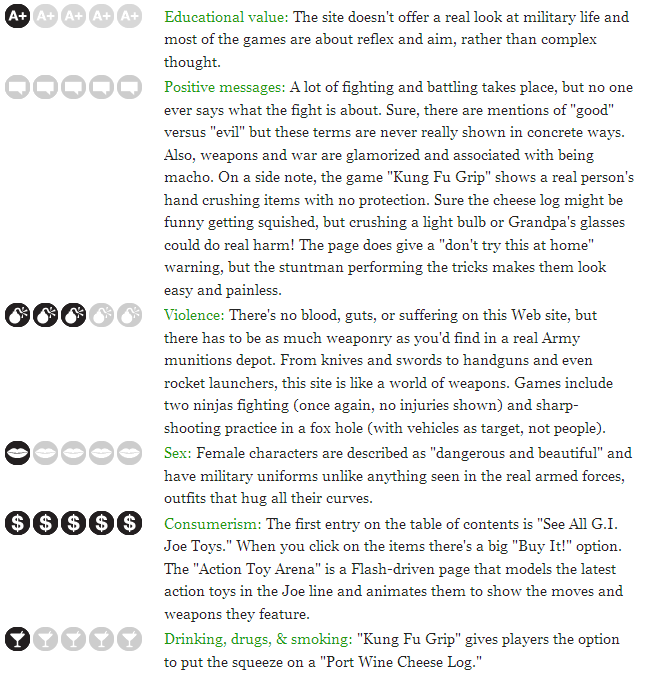
There should be at least 3 A+. Notice all the violence, lips, $ and drinks? The notes did not appear to have a lot of good things to say either. This website would NOT be a good choice! Click on the picture to make it bigger!
REMEMBER: NEVER go to the website link the review talks about UNLESS the review is good. This is common sense. |
Web Site Pictures

Let's find educational websites that are appropriate for your age and create a link to them on your web page. First, we need a picture that represents the website we want to link to. Let's get a picture that reminds us of the Animal Jam website. After trying out Animal Jam, I think it belongs in the Science column.
1. Slide a paragraph with picture element onto the science column.
2. Minimize your web page and go to voycom.com.
3. Find Animal Jam on the Common Sense media website.
4. Right click on the picture, then left click on Properties.
5. Highlight the URL address for that picture, right click on the highlight, left click on copy.
6. On your web page, click on the sample image to edit. Choose Image URL.
7. Left click in the box and do a CTLR V to paste (right click, copy might work too).
8. Label your icon 'Animal Jam', highlight and change the color.
1. Slide a paragraph with picture element onto the science column.
2. Minimize your web page and go to voycom.com.
3. Find Animal Jam on the Common Sense media website.
4. Right click on the picture, then left click on Properties.
5. Highlight the URL address for that picture, right click on the highlight, left click on copy.
6. On your web page, click on the sample image to edit. Choose Image URL.
7. Left click in the box and do a CTLR V to paste (right click, copy might work too).
8. Label your icon 'Animal Jam', highlight and change the color.
Web Links Together

Let's make a link from your web page to an educational website. We will start by making a link to Animal Jam together.
1. Get the Animal Jam website link from the Common Sense website
A. Click on the Animal Jam Title (not the icon, but the words)
B. Click on the link to go to Animal Jam
C. Highlight the Animal Jam in the address box and copy it (CTRL C)
D. Go back to your webpage, point at the Animal Jam icon, click on the chain link
1) Paste (CTRL V) the Animal Jam website into the Website URL box
2) Click on the Open Link in new window box and save
2. Publish your changes to the website.
3. In the "Website Published" box, click on the link to take you to your website.
4. Test the Animal Jam link to see if it actually goes to that website.
1. Get the Animal Jam website link from the Common Sense website
A. Click on the Animal Jam Title (not the icon, but the words)
B. Click on the link to go to Animal Jam
C. Highlight the Animal Jam in the address box and copy it (CTRL C)
D. Go back to your webpage, point at the Animal Jam icon, click on the chain link
1) Paste (CTRL V) the Animal Jam website into the Website URL box
2) Click on the Open Link in new window box and save
2. Publish your changes to the website.
3. In the "Website Published" box, click on the link to take you to your website.
4. Test the Animal Jam link to see if it actually goes to that website.
Weblinks with a Partner or On Your Own

Can you add a weblink to your web page on your own or with a partner? Feel free to use our instructions above from previous lessons. Here's a summary review of what you need to do.
1. Search for a fun, educational (Math, Reading/Writing, Science, Social Studies) website on Common Sense Media. Make sure the website has a good review.
2. Try the website out for 5 minutes to see if you like it.
3. Slide a picture element onto one of your educational columns
4. Copy and paste the website icon
5. Copy and paste the website address
6. Publish your changes
7. Test the link
Let's also add a Title box above your columns. Give your web page a fancy title with your name on it (no last name please!). This will let you know for sure that you are actually editing your own page and not someone else's.
1. Search for a fun, educational (Math, Reading/Writing, Science, Social Studies) website on Common Sense Media. Make sure the website has a good review.
2. Try the website out for 5 minutes to see if you like it.
3. Slide a picture element onto one of your educational columns
4. Copy and paste the website icon
5. Copy and paste the website address
6. Publish your changes
7. Test the link
Let's also add a Title box above your columns. Give your web page a fancy title with your name on it (no last name please!). This will let you know for sure that you are actually editing your own page and not someone else's.