• Home
  • Curriculum
    • Schedule>
      • K Grade Schedule>
        • K Grade Extra
        • 1st Grade Schedule>
          • 1st Grade Extra
          • 2nd Grade Schedule>
            • 2nd Grade Extra
            • 3rd Grade Schedule>
              • 3rd Grade Extra
              • 4th Grade Schedule>
                • 4th Grade Extra
                • 5th Grade Schedule>
                  • 5th Grade Extra
                • 3-5 Lesson Table
                  • PK-2 Lesson Table
                    • Creativity and Innovation (CI)>
                      • PK-2 Creativity and Innovation (CI.1)
                        • 3-5 Grades (CI)>
                          • Digital Project (CI.1)
                            • Creativity (CI.2)>
                              • Music (CI.2)
                              • Past, Present, Future Technologies (CI.3)
                            • Communication and Collaboration (CC)>
                              • K-2 Grades (CC)>
                                • K-2 Concepts (CC.1)
                                  • K-2 Ideas (CC.2)
                                  • 3-5 Grades (CC)>
                                    • Group Learning (CC.1)
                                      • Software Applications (CC.2)
                                        • Media and Formats (CC.3)
                                      • Research and Information Literacy (RI)>
                                        • K-2 Grades (RI)>
                                          • K-2 Internet Resources (RI.1)
                                            • K-2 Locate and Interpret (RI.2)
                                            • 3-5 Grades (RI)>
                                              • 3-5 Search Strategies (RI.1)
                                                • 3-5 Find, Organize, Analyze (RI.2)
                                                  • 3-5 Inaccurate or Biased Info (RI.3)
                                                    • 3-5 Multiples Sources (RI.4)
                                                  • Critical Thinking, Problem Solving, and Decision Making (CT)>
                                                    • K-2 Grades (CT)>
                                                      • K-2 Solve Problems (CT.1)
                                                        • K-2 Digital Resources (CT.2)
                                                        • 3-5 Grades (CT)>
                                                          • 3-5 Decisions (CT.1)>
                                                            • 3-5 Reading Decisons (CT.1)
                                                            • 3-5 Solving Problems (CT.2)
                                                              • 3-5 Investigate (CT.3)
                                                            • Digital Citizenship (DC)>
                                                              • K-2 Grades (DC)>
                                                                • Keep Safe, Away and Telling (DC.2)
                                                                • 3-5 Grades (DC)>
                                                                  • Technology Use (DC.1)
                                                                    • Ethical Use (DC.2)
                                                                      • Online Safety (DC.3)
                                                                        • Personal Info (DC.4)
                                                                      • Technology Operations and Concepts (TC)>
                                                                        • K-2 Grades>
                                                                          • Menus and Common Operations (TC.2)
                                                                            • Terminology (TC.5)
                                                                              • Task Tools (TC.6)
                                                                                • Navigate (TC.7)
                                                                                • 3-5 Grades>
                                                                                  • 3-5 Input / Output Devices (TC.1)
                                                                                    • 3-5 Changed Life (TC.2)
                                                                                      • 3-5 Assistive Technologies (TC.3)
                                                                                        • 3-5 Exchange Files (TC.5)
                                                                                      • SMART Goal
                                                                                      • Rules
                                                                                      • Photos
                                                                                        • Students of the Week
                                                                                          • 5th Grade Life 2010-11
                                                                                            • 5th Grade Life 2011-12>
                                                                                              • Mrs. Baker's Class>
                                                                                                • Mrs. Baker's Quarter 1
                                                                                                • Mrs. Gariepy's Class>
                                                                                                  • Mrs. Gariepy's Quarter 1
                                                                                                  • Mrs. Hibbard's Class>
                                                                                                    • Mrs. Hibbard's Quarter 1
                                                                                                    • Mrs. Tholen's Class
                                                                                                  • Websites
                                                                                                    • Pre-K
                                                                                                      • Math>
                                                                                                        • Kindergarten Math
                                                                                                          • 1st Grade Math
                                                                                                            • 2nd Grade Math
                                                                                                              • 3rd Grade Math
                                                                                                                • 4th Grade Math
                                                                                                                  • 5th Grade Math
                                                                                                                  • Reading & Writing
                                                                                                                    • Science
                                                                                                                      • Social Studies>
                                                                                                                        • Commemorative Days
                                                                                                                          • 1st Grade Social Studies
                                                                                                                            • 3rd Grade Social Studies
                                                                                                                            • Howell Public Schools
                                                                                                                            • Videos
                                                                                                                              • Music
                                                                                                                                • Funny
                                                                                                                                • Parents
                                                                                                                                  • Parent / Teacher Conferences>
                                                                                                                                    • Fall Photos
                                                                                                                                  • Voyager Hunters and Fishermen
                                                                                                                                  • Contact
                                                                                                                                  • To Do
                                                                                                                                  Voyager Elementary Technology

                                                                                                                                  Creativity (CI.2)

                                                                                                                                  Picture
                                                                                                                                  3-5.CI.2. use a variety of technology tools and applications to demonstrate his/her creativity by creating or modifying works of art, music, movies, or presentations

                                                                                                                                  I Can

                                                                                                                                  Picture
                                                                                                                                  I can use technology tools to show my creativity.
                                                                                                                                  I can modify photos and movies.
                                                                                                                                  I can create presentations.
                                                                                                                                  I can create and modify music.
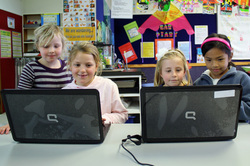
                                                                                                                                  Creating and Modifying Music

                                                                                                                                  Picture
                                                                                                                                  Use the Kid's Place Map to find your way to Rock School. Learn how to play the interactive keyboard, bass, accoustic and electric guitars! If this is your first time, first create your new user account. Don't forget to check out the songs on the Franktown Music list too!

                                                                                                                                  Modifying Photos

                                                                                                                                  Picture
                                                                                                                                  Use Picture Manager to modify the pictures you took with the digital cameras. After you open Picture Manager, find the folder with your pictures. Double click on the picture you want to modify. First try auto correct. IF you think the photo looked better before auto correct, click on the undo arrow.

                                                                                                                                  Choose edit pictures and crop out anything around the edges you don't need. Thoughtful cropping can make the difference between an average photo and a better one.

                                                                                                                                  Did the camera flash create any red eyes in your photo? If so, use red eye removal to target the red eyes. Do this only once per red eye. Repeated attempts to remove red eyes can sometimes make the eyes in the photo look worse!

                                                                                                                                  Copies of your photos have already been made. In real life, you should NOT crop your only version of a photo. Always crop a copy. In many programs, cropping destroys the original and replaces it with the cropped version. Depending on your skill, you may wish you had never altered the original!

                                                                                                                                  As a team, check out each others' cropped version of the photos. Are there any differences? Which do you like better and why? Any suggestions for improvement?

                                                                                                                                  Movie Maker

                                                                                                                                  Picture
                                                                                                                                  Use Movie Maker to demonstrate your creativity. Import the pictures you modified with Picture Manager. 

                                                                                                                                  Movie Maker Import

                                                                                                                                  Picture
                                                                                                                                  Your practice pictures are stored in MyPics. Make sure you SINGLE click on the folder, then use the import button to open up the folder. Please do NOT double click on the folders when you are in Movie Maker.

                                                                                                                                  Movie Maker Thumbnails

                                                                                                                                  Picture
                                                                                                                                  Use the thumbnails option to know what the picture is before importing the picture. Now you can drag the picture from your collections and drop it onto your storyboard. Do you know how to delete a picture from your storyboard? Give it a try and then re-add the picture if you want it.

                                                                                                                                  Can you find your classroom folder on the S drive and import some of your best pictures? Remember to SINGLE click on the folder, then use the import button to open up the folder. Mr. Thelen will show you how to save and play. Let's call the file this: 5th Grade Memories.

                                                                                                                                  Check out these
                                                                                                                                  examples from last year's students!
                                                                                                                                  Get your parent's permission first if you want to try Movie Maker at home ; ) Some computers have Movie Maker; some don't.

                                                                                                                                  Movie Maker Video Effects

                                                                                                                                  Picture
                                                                                                                                  Use your creativity to modify a picture with movie maker video effects. Try out these effects first: ease in, ease out, film age old, older and oldest. Which do you think would be better and why?
                                                                                                                                  1. Putting an effect on EVERY picture
                                                                                                                                  2. Putting an effect on every other picture
                                                                                                                                  3. Putting an effect on every 3rd picture

                                                                                                                                  How can you tell if a picture has a video effect on it?
                                                                                                                                  How can you tell if a picture has more than 1 video effect on it?

                                                                                                                                  Movie Maker Transitions

                                                                                                                                  Picture
                                                                                                                                  Try out some transitions between 2 photos. Which ones do you like the best?
                                                                                                                                  Which do you think would be better and why?
                                                                                                                                      1. The same transition between each picture
                                                                                                                                      2. Different transitions between pictures

                                                                                                                                  Check out the rest of the transitions and the rest of the video effects. All the transition choices seem to be OK, but there are some video effects that probably would not be a good choice for your project. Which video effects do you think would NOT be a good choice and why do you think they would not be a good choice?

                                                                                                                                  Animoto Presentations Intro

                                                                                                                                  Picture
                                                                                                                                  Animoto is a technology tool that will help you show your creativity by constructing a presentation with a musical background.

                                                                                                                                  In your row, discuss the following questions as you watch the samples below:
                                                                                                                                      1. Are the photos of students? With friends?
                                                                                                                                      2. Do you like the music that was chosen?
                                                                                                                                      3. Do you like the design of the presentation?
                                                                                                                                      4. Which presentation is the most creative?
                                                                                                                                      5. What are your plans to show your creativity using Animoto?

                                                                                                                                  If your video does not load fast enough, and the video has loaded on another computer in your row, simply share the computer that has the video loaded.

                                                                                                                                  Feel free to browse from home too. Remember our email address for this is voyager@yahoo.com. Please do NOT give our secret password away ; )
                                                                                                                                  Picture
                                                                                                                                  Picture
                                                                                                                                  Picture
                                                                                                                                  Picture
                                                                                                                                  Picture
                                                                                                                                  Picture
                                                                                                                                  Picture
                                                                                                                                  Picture

                                                                                                                                  Animoto Creation

                                                                                                                                  Picture
                                                                                                                                  What are your plans to show your creativity using Animoto? Do your BEST and maybe next year's 5th graders will choose your video!

                                                                                                                                  1. Sign in to Animoto using the Voyager email address,
                                                                                                                                       
                                                                                                                                  voyager@yahoo.com.
                                                                                                                                  2. Create a Christmas video to send to your parents. 
                                                                                                                                      If your family does not celebrate Christmas, use one of the other video styles.
                                                                                                                                  3. Make a 30 second FREE video (Do NOT purchase).
                                                                                                                                      About how many images do you think a 30 second video uses?
                                                                                                                                  4. Upload some pictures of you from the S drive, but stay of quarter 2. (not cropped yet)
                                                                                                                                  5. Use the open button for folders. Do NOT double click the folders; just 1 click please.
                                                                                                                                  6. Change music to Holiday. Listen to some songs, then add the song you want.
                                                                                                                                  7. Add text to personalize your video.
                                                                                                                                  8. You can slide the images in any order you want.
                                                                                                                                  9. Press the Produce Video button when ready. This might take up to 5 minutes.
                                                                                                                                  10. Put your first name in the title followed by the word Christmas. 
                                                                                                                                      If your family does not celebrate Christmas, use the word Holiday instead.
                                                                                                                                  11. When you press My Videos, double check to make sure your project was renamed. 
                                                                                                                                      If it still says "Untitled", use the rename option in the Edit Project drop down menu.
                                                                                                                                  12. Play your video. Need to make edits? Choose My Videos at the top, then Edit Project.
                                                                                                                                  13. Share the video and email the first time to your Mom and/or Dad.
                                                                                                                                      Make sure to uncheck the box that says "Email me when my recipients view this video"

                                                                                                                                  Animoto Music, Personalize and Email

                                                                                                                                  Picture
                                                                                                                                  Uploading photos took a whole lesson last time we met. Now let's continue with adding music, personalizing your video and emailing your final production to your Mom and/or Dad!